

As of today, the Story Guide in Just Write can hold groups — and until this morning, it couldn't. If you've been writing a novel with a cast that outgrew a single screen, this is the fix you've been scrolling past looking for.
What the Story Guide used to ask of you
Open any long novel's Story Guide before today and you'd find one flat column: every character, every location, all the way down. Forty-eight characters and twenty-seven locations is not an unusual count for a novel-length story, and the Story Guide listed all of them the same way — alphabetically, or in whatever order you'd added them, with no sense of who belonged with whom.
The organizing happened in your head instead. You knew Priya was from the coworkers, and Dale was the uncle, and the diner was where the bowling league met on Thursdays — but the Story Guide didn't know that, and neither did the AI drafting your scenes from it. If you wrote an outline beat like "Chris has lunch with his coworkers," you'd have to go name them. All six. Every time. Skip the names and you'd get generic lunch companions instead of the actual people you'd built. The workaround most writers landed on was a naming convention — prefixing character names with "Work:" or "Family:" just to keep them findable in the scroll. It worked, barely, and it did nothing for the AI.
That was the real cost. Not the scrolling — the fact that your own organization, the categories you were already thinking in, lived only in your memory and never reached the page.
What changes today
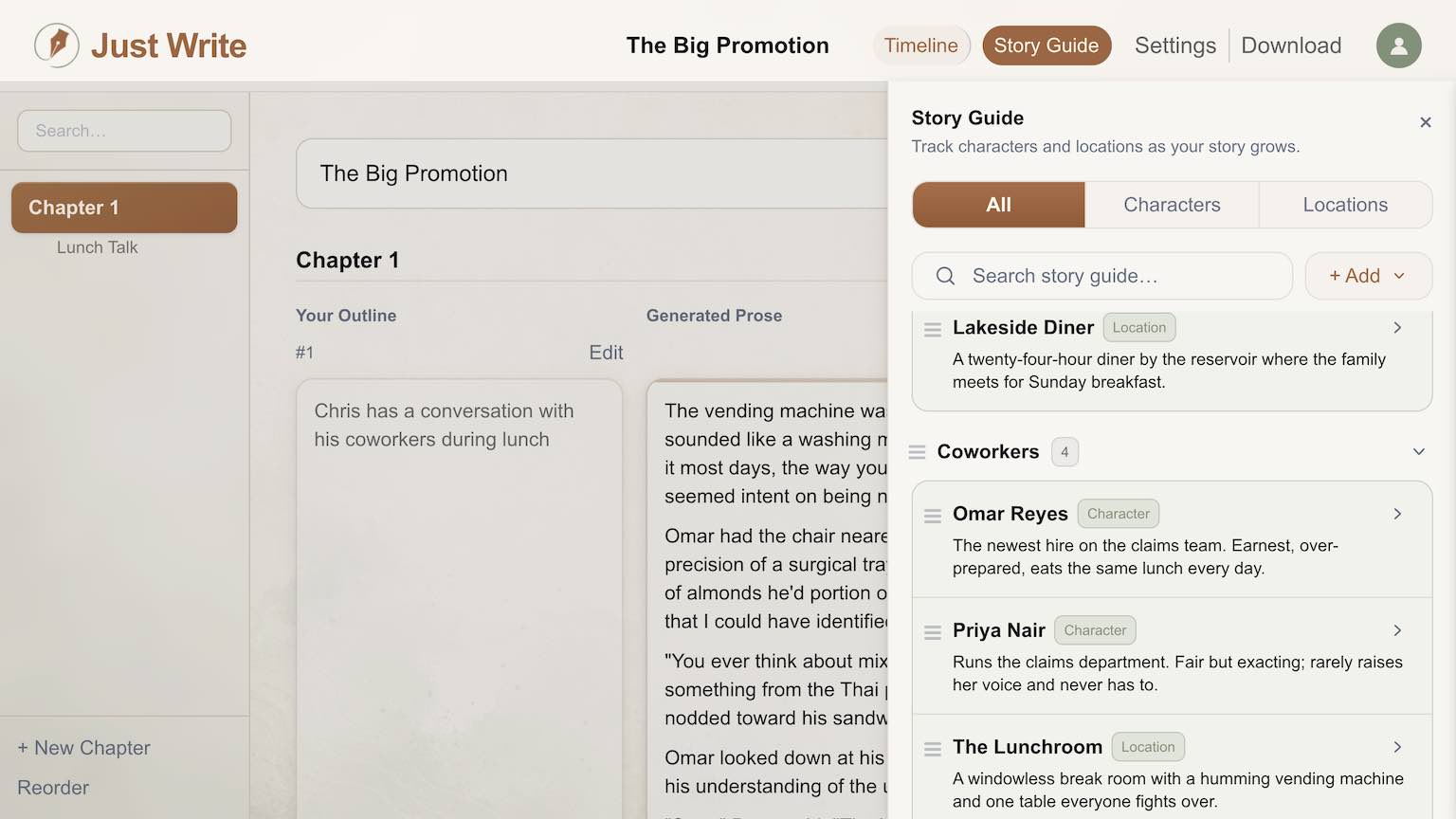
Story Guide Groups is live. Open the Story Guide beside your outline, choose + Add → Add Group, and name it whatever you actually call that cluster of people: Family, Coworkers, Church, the Bowling League. Drag characters and locations into it, or set their group from the entry's edit form. A group can hold both characters and locations at once, so "Church" keeps the pastor, the choir, and the building itself in the same place.
Each group collapses to a single heading with a count, and the Story Guide remembers what you've closed, so a 75-entry cast can shrink down to a handful of lines while you're focused on one thread of the story. Drag a group's handle to move your most-used ones to the top. Anything you haven't filed yet sits under "Ungrouped" — and deleting a group never deletes what's inside it; those entries just drop back to Ungrouped. Search respects groups too, so typing "coworkers" surfaces everyone filed there in one pass.
The part you'll feel in the actual prose: the AI now reads your groups. Write "Chris has a conversation with his coworkers during lunch" and, if you've got a group called Coworkers, every character in it gets pulled into that scene automatically — with their descriptions intact, and understood as coworkers even if nothing in their own character notes says where they work. You stop writing outline beats like a cast list and start writing them like a person actually thinking about their day.
One level only, by design — no groups inside groups, same as periods on the Timeline. An entry lives in exactly one group at a time, which keeps the system honest and keeps you from building a filing project instead of a novel.
Try it without touching your own manuscript first
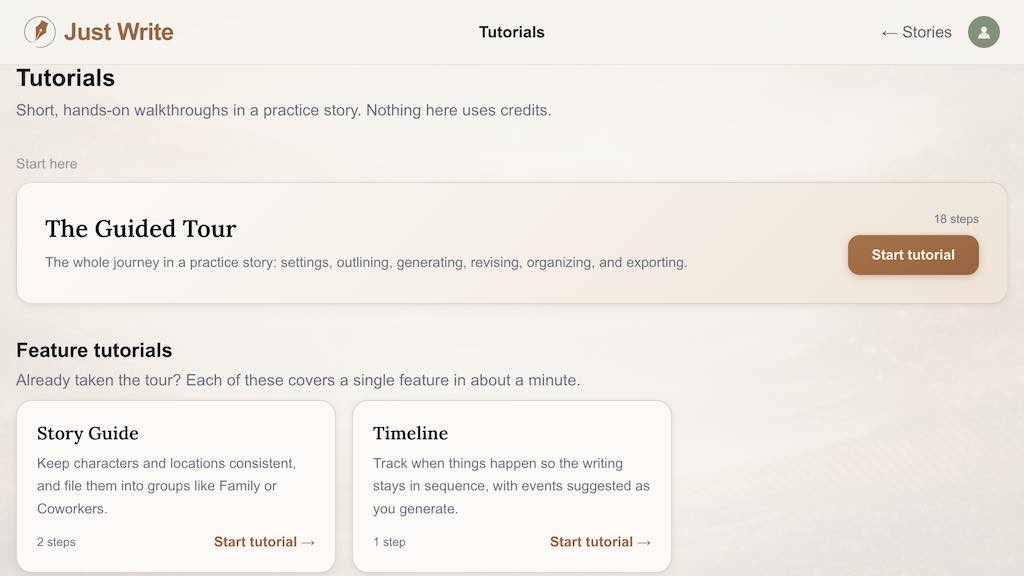
If you'd rather see it before you use it, the Tutorials page has been rebuilt alongside this release. It now lists every tutorial Just Write offers: the full Guided Tour, plus two new short ones — a minute-long Story Guide tutorial and a Timeline tutorial — each done in a shared practice story so you're not experimenting on your own draft. The Story Guide tutorial has you drag one character into a group and collapse it, and that's the whole thing.
If you already had a story going when this shipped, you'll see a one-time floating note pointing you to that short tutorial, wherever you happen to be working. No need to sit through the full tour again for one new feature.
This is built for anyone whose character work has grown past a single screen — family sagas, workplace ensembles, small-town stories with a dozen regulars, fantasy casts with armies and courts. If that's your story, open the Story Guide, add your first group, and see what the AI does with a scene once it knows who's in the room.