
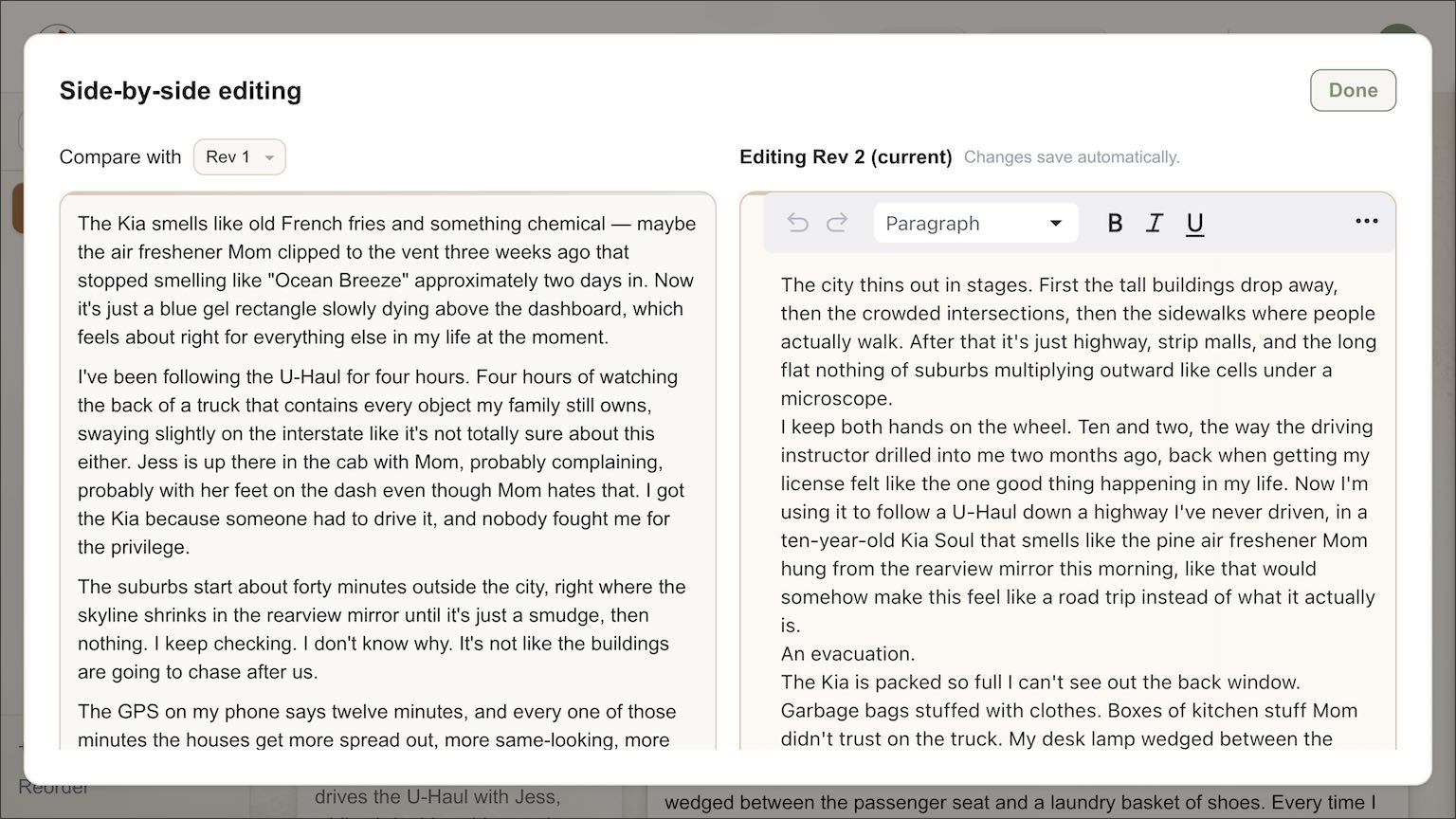
As of today, you can open an earlier revision of a page right next to the current one and edit the current draft while you read the old one. Side-by-Side Editing is live for every story in Just Write, and it fixes something that has been mildly annoying for as long as revisions have existed: there was no way to look at two drafts at once.
What merging drafts used to mean
Every page in Just Write keeps a running history — each regeneration and each restore creates a new revision. That history has always been useful for going back to an earlier draft wholesale. It was much less useful for the more common case: the current draft is better overall, but revision three had one line that landed harder than anything in the current version, and you want that line without giving up the rest.
Until today, getting it meant a small, repetitive chore. Open the old revision, copy the sentence. Switch back to the current one. Click Edit. Paste it in, roughly where it belonged. Repeat for the next sentence you wanted to save. For one line, that's mildly annoying. For three or four scattered across a page, it was enough friction that people just didn't bother, and a good sentence stayed buried in a revision nobody would look at again.
What changes today
Side-by-side editing removes the switching. Find a page with more than one generated revision, and you'll see a Compare button next to the page's Edit button. Click it, and a wide dialog opens with two columns: the older revision on the left, read-only, and the current revision on the right in the full prose editor.
You read the left column and rewrite the right one in the same view — no tab-switching, no clipboard. If a page has several old drafts, the Compare with dropdown above the left column lets you flip between them while the current revision stays put on the right. Each column scrolls independently, so you can line up the paragraph you're borrowing from with the paragraph you're rewriting.
Editing on the right works exactly like the inline editor you already know: changes save automatically as you type, and the formatting toolbar stays pinned at the top as you scroll. On a narrower window, extra toolbar buttons tuck into a More tools menu rather than getting clipped — the same behavior you'll now see in the regular inline editor too. When you're done, click Done or hit Escape. There's no separate save step; the merged text you were just editing is already the current revision.
One small convenience: if you were already previewing an older revision when you clicked Compare, the dialog remembers that and opens with that revision already loaded on the left.
Where this actually helps
This is squarely for people who already lean on regeneration and the revision picker — if you write a page once and move on, nothing about your workflow changes. But if you're the type who asks the AI to take another pass at a scene, or restores an older draft to reread it, Side-by-Side Editing is built for the moment right after: the moment you realize the new version is better but not complete, and the old one had something worth keeping.
It pairs naturally with anything that generates multiple attempts at the same beat — a fight scene where one draft nailed the choreography and another nailed the character's interiority, or a chase where the pacing works in one revision and the dialogue works in another. Rather than picking a winner and losing the rest, you can now build the page you actually wanted out of the pieces you already have.
If you're mid-project and want help getting a full draft down before you start refining it line by line, that's what Just Write is for — draft first, then use tools like this one to sharpen it.
Try it now
Open any story with a page that's been regenerated at least once, click Compare next to that page's Edit button, and pull one sentence from the old draft into the new one. That's the whole feature — go find a page worth merging.